Pre-Auth
A pre-authorization reserves (ring-fences) funds on the cardholder's account. When you are ready to collect payment, capture the authorized amount so it is included in settlement. If you do not capture it within the issuing bank's hold period, the reserved funds are released automatically.
Capture requests the funds reserved by the preceding pre-auth and puts the transaction in the settlement file. To capture only part of it, enter an amount lower than the authorized amount.
Make a pre-auth
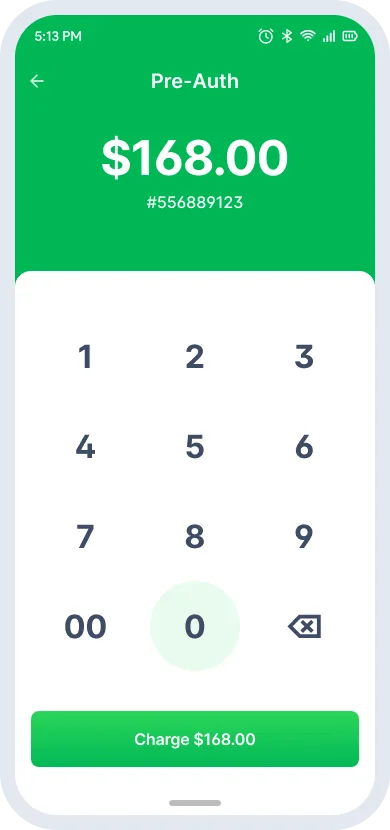
- Tap Pre-Auth on the homepage.
- Enter the amount and tap Charge.
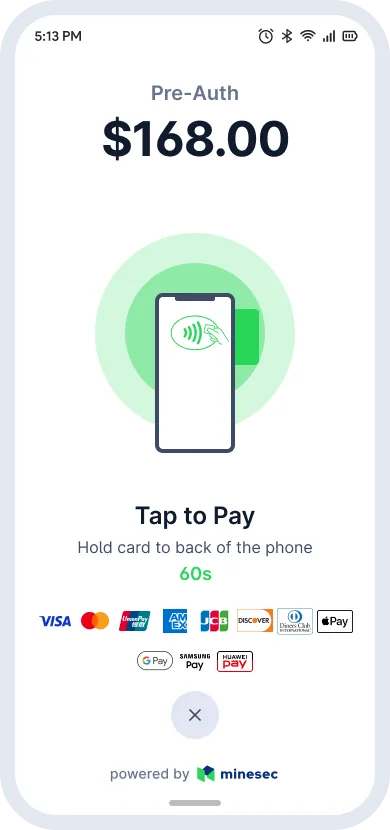
- The customer taps or holds the card against the NFC reader.
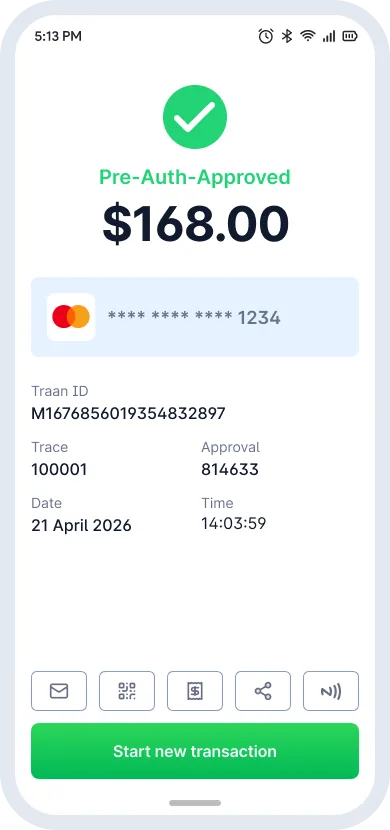
- Wait for the host to authorize the transaction.
- On Pre-Auth-Approved, issue the receipt by Email, QR, E-Receipt or Share.
Complete a pre-auth
Completion captures the funds held by an earlier pre-auth, in full or in part, for settlement. The cardholder does not need to tap their card again.
Amount limit: the completion amount cannot exceed the original pre-auth amount, unless an over-completion threshold has been configured for the merchant profile.
- Go to History and select the Auth-Approved transaction.
- Tap Completion at the bottom of the details page.
- Enter the final Completion Amount and tap Confirm.
- On Auth_Completion-Approved, issue the receipt by Email, QR, E-Receipt or Share.
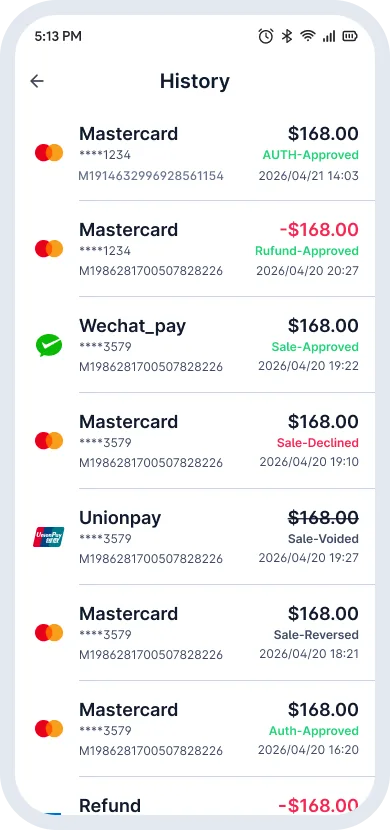
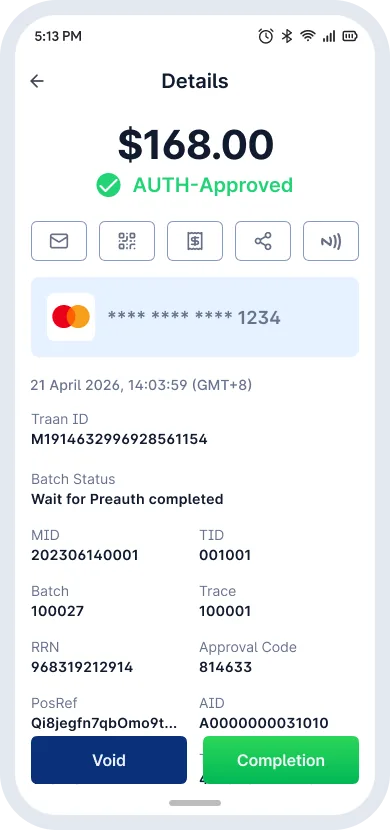
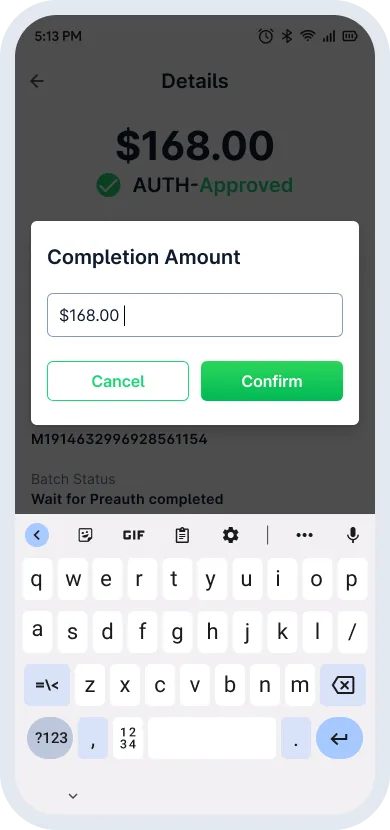
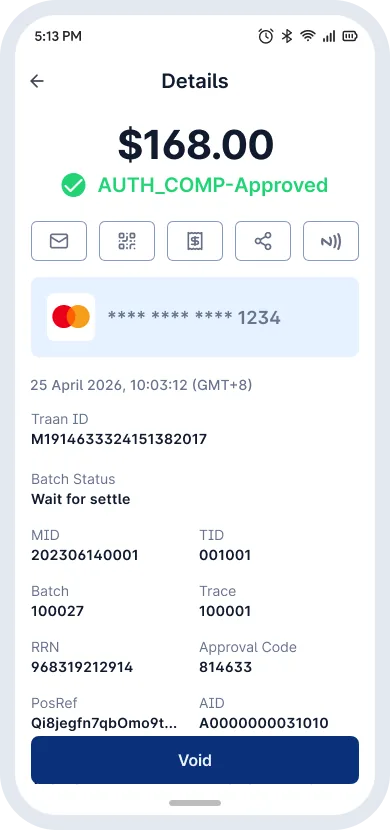
The completed transaction then appears in History with batch status Wait for settle until the next settlement batch runs.
Pre-auth lifecycle
- Pre-Auth
- Pre-Auth-Approved
- Completion
- Auth_Completion-Approved
- Pending Settlement
- Settlement
- Settled