History & Receipts
View transaction history
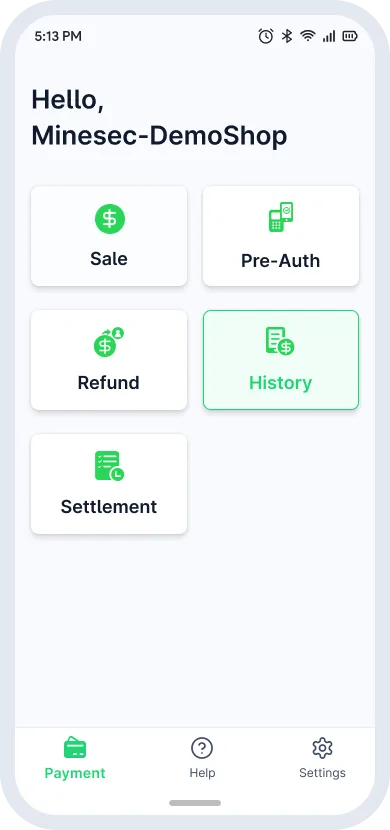
- Tap History on the homepage to open the transaction list.
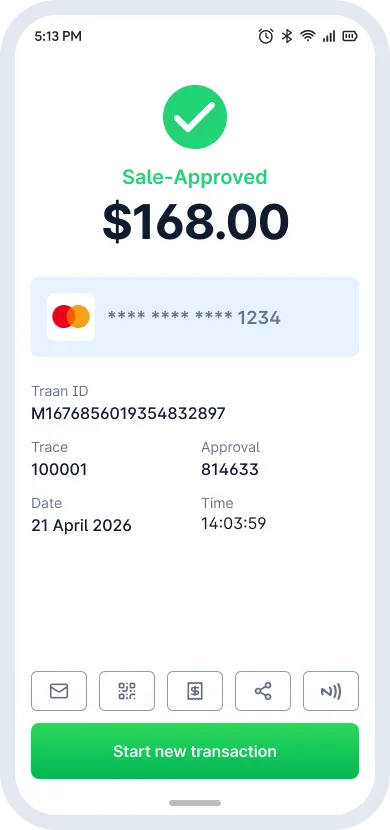
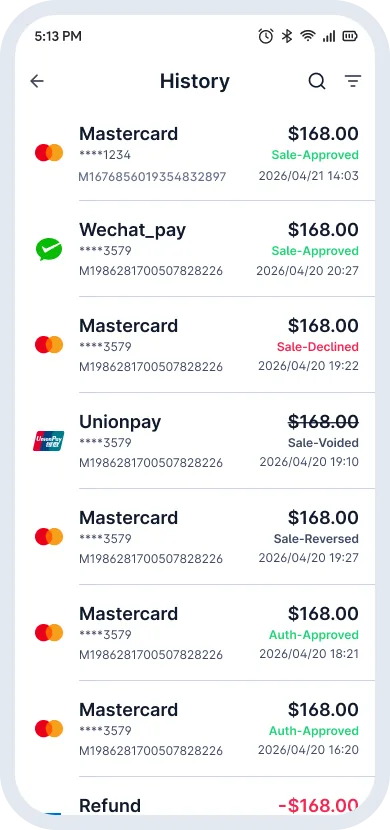
- Each record shows payment method, card type, amount and status, for example Sale-Approved or Sale-Declined.
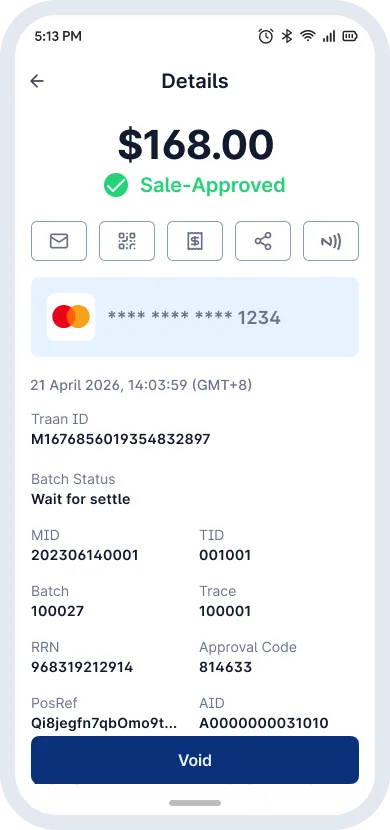
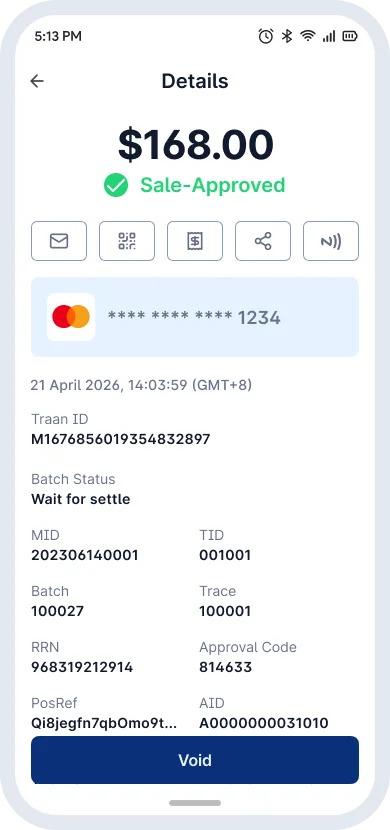
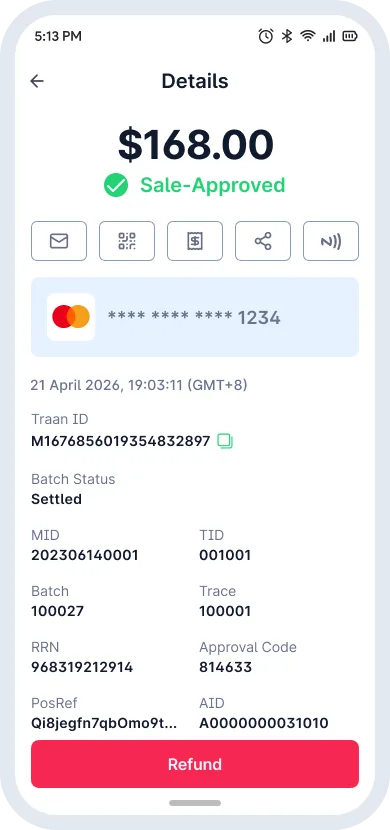
- Select a transaction to view details. From there you can reissue the receipt, void it (before settlement) or refund it (after settlement).
Status reference
| Status | Meaning |
|---|---|
| Sale-Approved | Transaction approved and completed. |
| Declined | Declined by the issuer or payment network. |
| Voided | Cancelled before settlement. |
| Refund-Approved | Refund approved and completed. |
| Auth-Approved | Pre-authorization approved; funds reserved. |
| Auth_Completion-Approved | Pre-auth capture approved; funds confirmed for settlement. |
Issue a receipt
Receipt options are the row of five buttons on the success screen and on the History details page, in this order:
| Button | How it works |
|---|---|
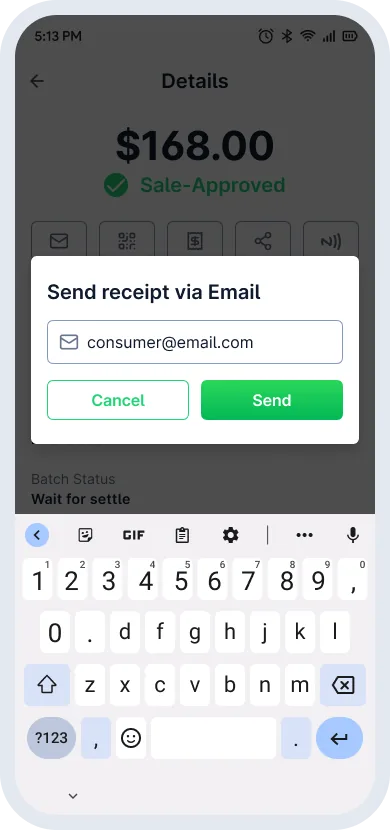
| The customer enters their email address and taps Send. | |
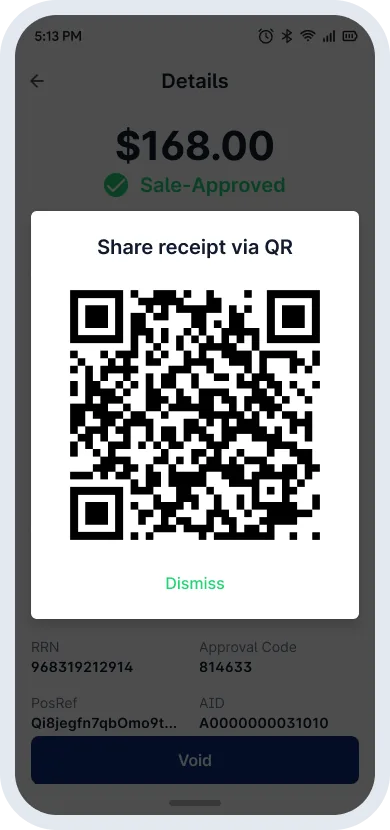
| QR | Shows a QR code. The customer scans it to open the e-receipt. |
| E-Receipt | Shows the electronic receipt on screen for merchant and customer. |
| Share | Choose an app or location to send or save the receipt image. |
| Retrieve | Turns on the NFC reader. The customer (for example an iPhone user) taps their phone on the device and the receipt opens in their mobile browser. |