Activation & Login
An activation code is a one-time credential generated in the TMS Portal. It binds a merchant profile to a specific device. Enter the code, or scan its QR equivalent, in the MineSec Pay 7 app to activate the terminal and enable payment acceptance.
Generate an activation code (TMS Portal)
Prerequisite: the System Admin has set up the PBO group and a merchant profile has been created.
- Log in to the TMS Portal.
- Go to Merchant in the sidebar.
- Enter the merchant name and click Query.
- Click the merchant in the list, then open the Activation Code tab.
- Click + Create to generate the activation code.
Activate the app
- Launch the MineSec Pay 7 app on the merchant device.
- Enter the activation code in the Passcode field, or scan the activation QR code.
- Tap Login to activate and access the account.
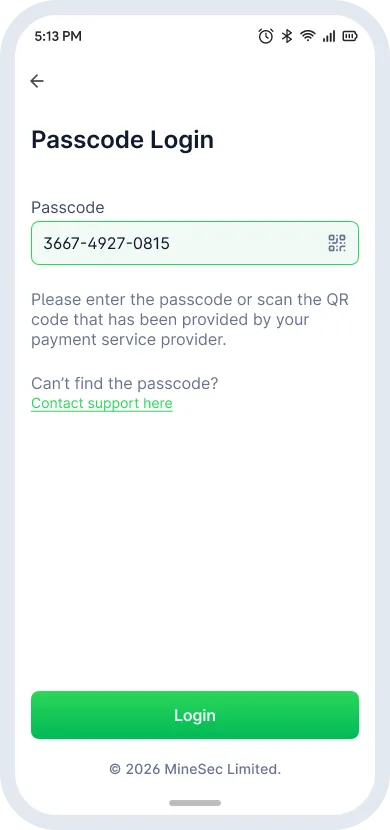
Lost the code? Tap Contact support here on the login screen to open the support page, enter the registered email, and a new activation code is sent to that inbox. Admins can also email the activation code to merchants from the TMS Portal.
Biometric login
Setup rule: turn on the APP biometric switch in the TMS Portal to enable this feature.
Recognition order
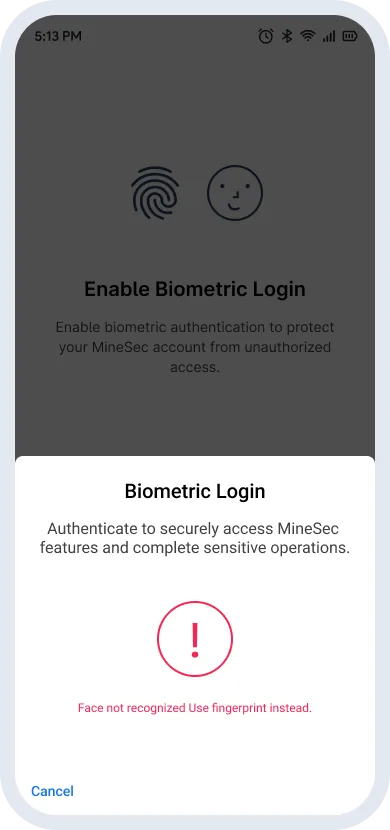
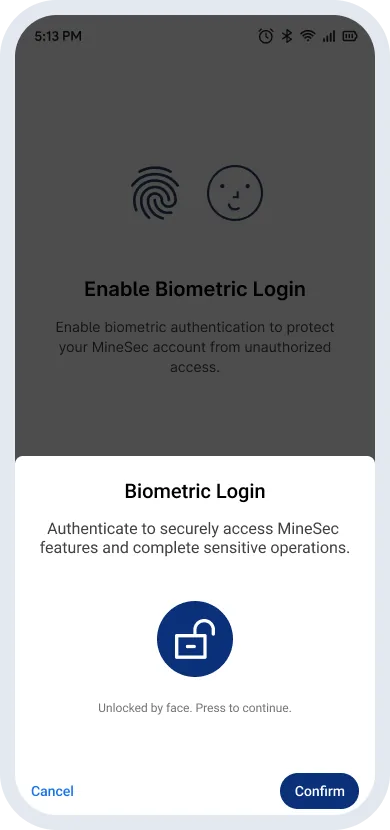
- Face ID is used first when both face and fingerprint are enrolled on the device.
- If the face is not recognized, the app falls back to fingerprint.
When biometrics are used
| Scenario | What happens |
|---|---|
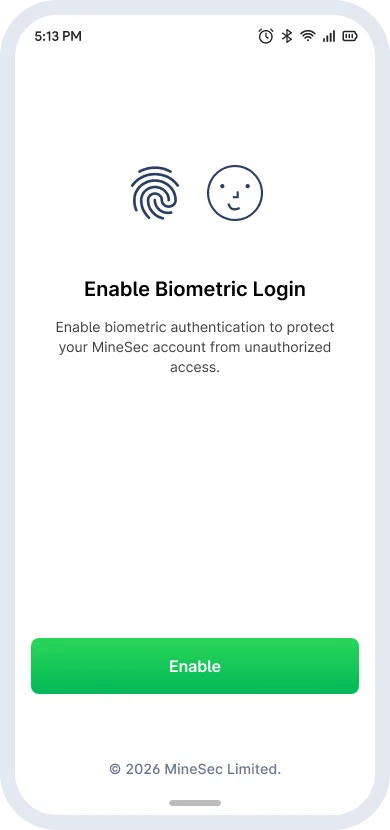
| First-time setup | Log in with the passcode or activation code, then tap Enable on the Enable Biometric Login screen to bind the account. |
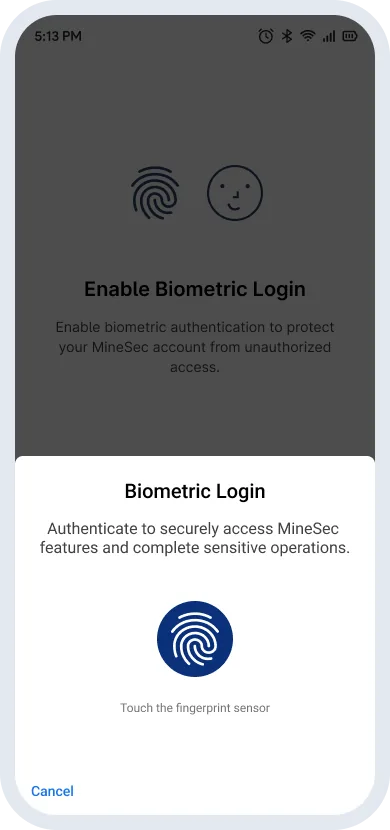
| Screen wake | If the device screen locks or turns off, returning to the app opens the biometric prompt immediately. |
| Relaunch | On every later launch, even after logout, the passcode screen is skipped and the app goes straight to biometric verification. |
The homepage
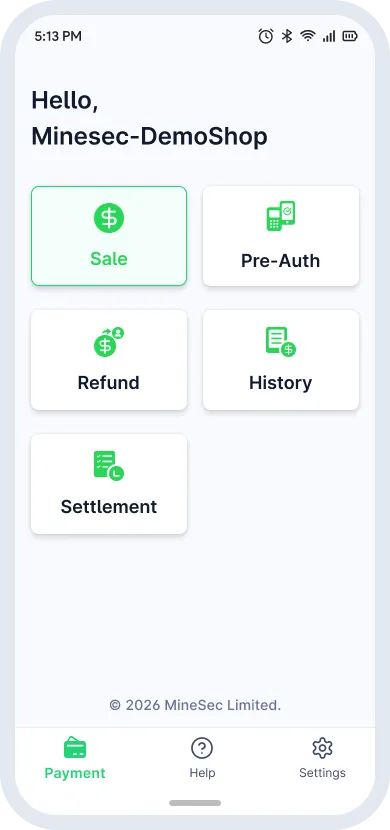
After login you land on the homepage. Tap a quick-access button (Sale, Pre-Auth, History, Settlement or Refund) to start working on the terminal.