PIN Capture
The SDK supports to capture PIN separated. This is mainly for SCA PIN capture.
PinPad Modes
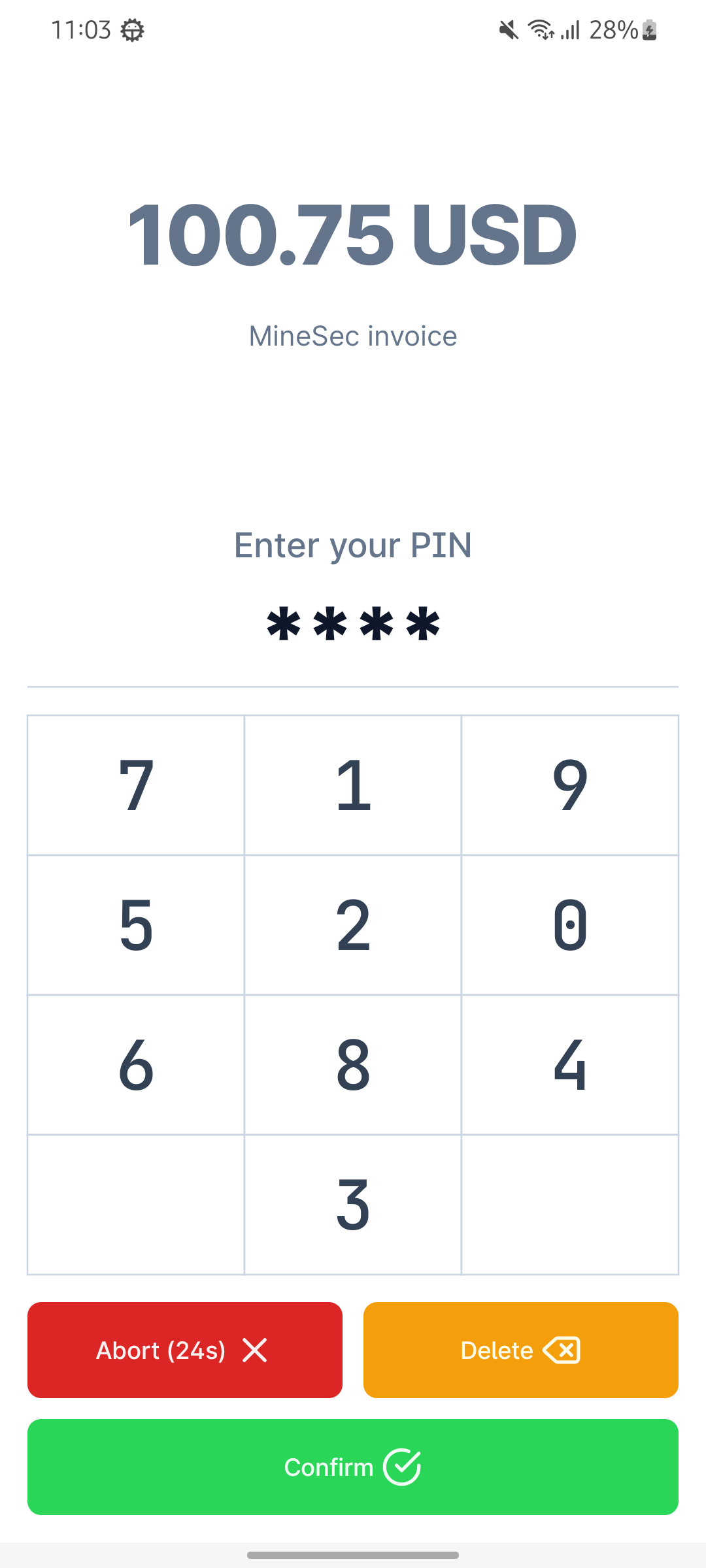
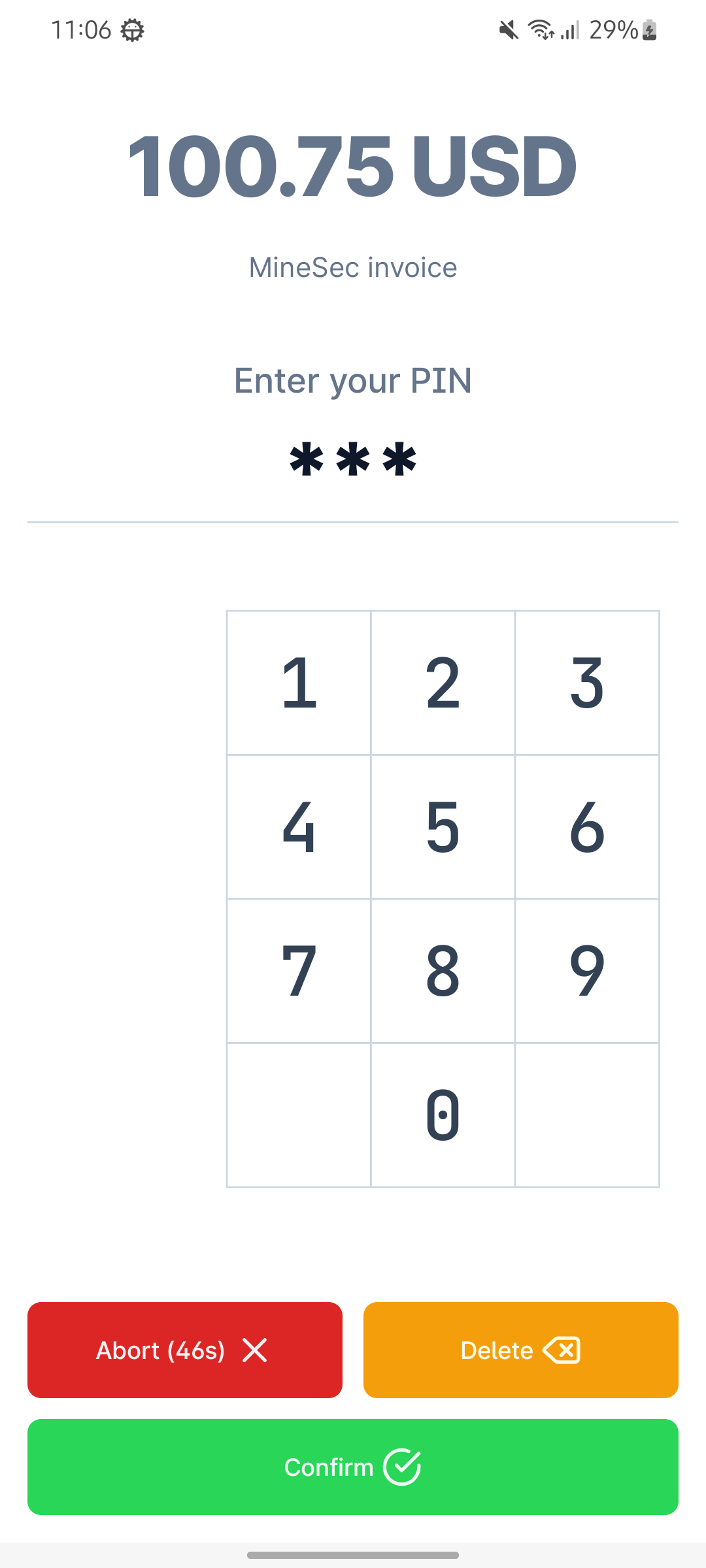
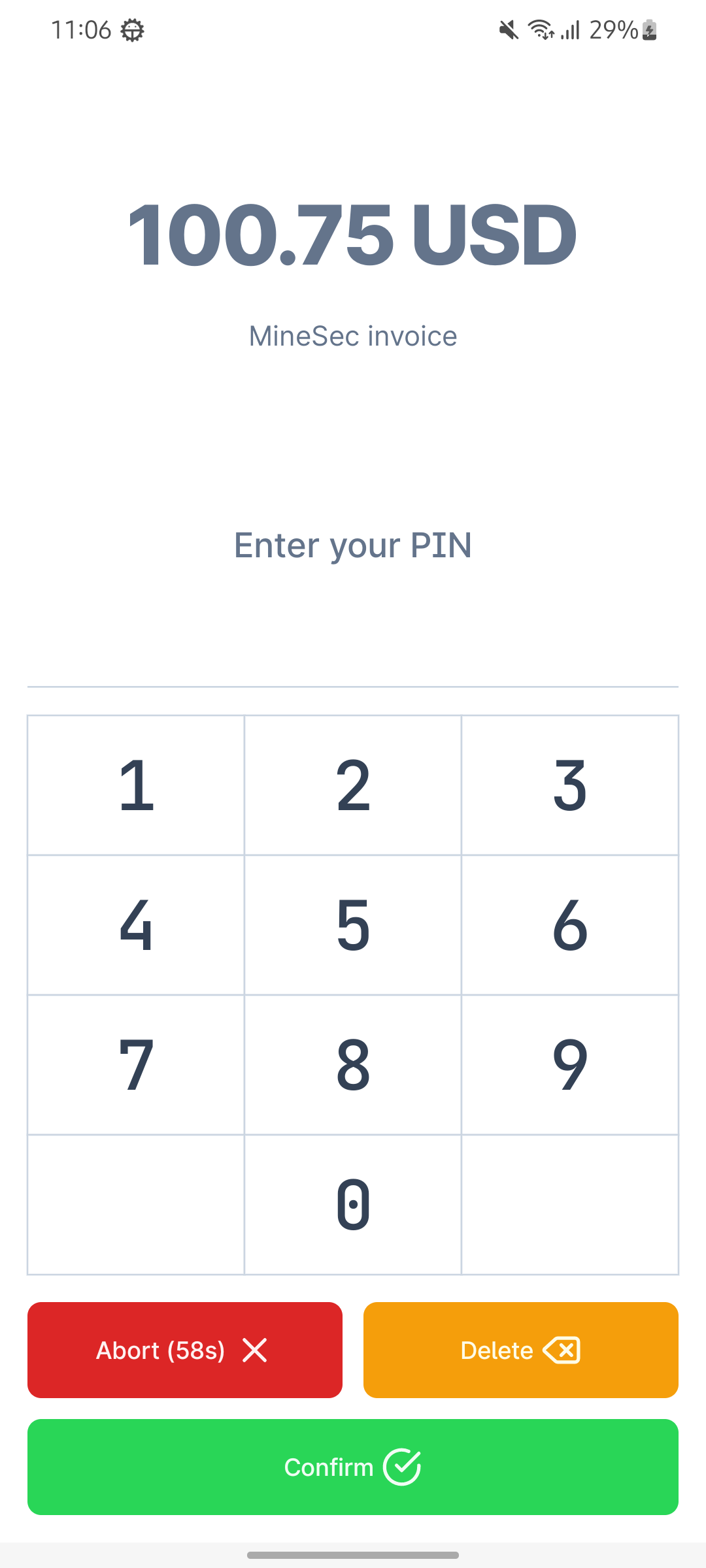
We support three different PinPad modes [Shuffle, Moving and Fixed] with default UI as shown in the figure
enum class PinEntryMode {
    SHUFFLE,
    MOVING,
    FIXED
}
Shuffle
Moving
Fixed
PIN Pad Customization
You customize the PIN pad with a PinPadConfig. The same object is used wherever a PIN is collected:
- During a transaction: serialise it to a JSON string and set it as
MhdEmvTransactionDto.pinpadConfig. If the string is not validPinPadConfigJSON, the SDK uses the defaultPinPadConfig()and reports no error. - Standalone: pass it as the
PinPadConstants.EXTRA_PIN_PAD_CONFIGextra when you launch the PIN pad activity, see Launch PinPad Activity.
Every field is optional. A field you leave out keeps the SDK's built-in look, so you only set what you want to change.
val pinPadConfig = PinPadConfig(
  pinEntryMode = PinEntryMode.FIXED,
  pinPadStyle = PinPadStyle(
    buttonsColor = ButtonsColor(confirmBtn = Color.Blue.toArgb()),
    dimensions = PinPadDimensions(buttonHeightDp = 64f)
  ),
  pinEntryDetails = PinEntryDetails(
    pinDescription = "Enter your PIN",
    supportPINBypass = false,
    timeoutSeconds = 45
  )
)

val transactionDto = MhdEmvTransactionDto(
  txnAmount = 1000,
  txnCurrencyText = "USD",
  pinpadConfig = Gson().toJson(pinPadConfig)
)
How the objects nest:
PinPadConfig
├─ pinEntryMode: PinEntryMode        key layout: SHUFFLE, MOVING or FIXED
├─ pinPadStyle: PinPadStyle          how it looks
│    ├─ backgroundColor
│    ├─ amountStyle, descriptionStyle, pinMessageStyle, pinMaskStyle, digitStyle, buttonTextStyle : TextStyleConfig
│    ├─ buttonsColor: ButtonsColor
│    ├─ dimensions: PinPadDimensions
│    └─ preparingStyle: PreparingStyle
└─ pinEntryDetails: PinEntryDetails  what it says and how it behaves
PIN Entry Details
What the PIN pad says and how it behaves for this PIN entry.
data class PinEntryDetails(
  // Amount text shown on the PIN pad. During a transaction, if you leave it at the default the SDK shows the
  // transaction amount. For a standalone PIN capture, set it yourself, otherwise the PIN pad shows "No Amount!"
  val amount: String = "No Amount!",
  val description: String = "",
  val pinDescription: String = "Enter your PIN",
  // Whether the cardholder may skip the PIN. A skipped PIN comes back as CardCVM.PIN_BYPASS
  val supportPINBypass: Boolean = true,
  // true = PIN entry skips online attestation so it can run without network. See below
  val enableOfflinePinEntry: Boolean = false,
  // PIN entry timeout in seconds. null = the SDK default
  val timeoutSeconds: Int? = null,
  // Button labels. null = the SDK text in the device language. Set these to localise the PIN pad
  val abortText: String? = null,
  val confirmText: String? = null,
  val deleteText: String? = null,
  // true forces right-to-left layout, false forces left-to-right, null follows the device.
  // Set it together with right-to-left text (for example Arabic) so the buttons and icons match the text
  val isRtl: Boolean? = null
)enableOfflinePinEntry: when true, PIN entry skips online attestation, so it works without network. The local
device checks still run. A cached attestation failure that the server already returned still blocks PIN entry, but a
failure caused only by the network being unreachable does not.
PIN Pad Style
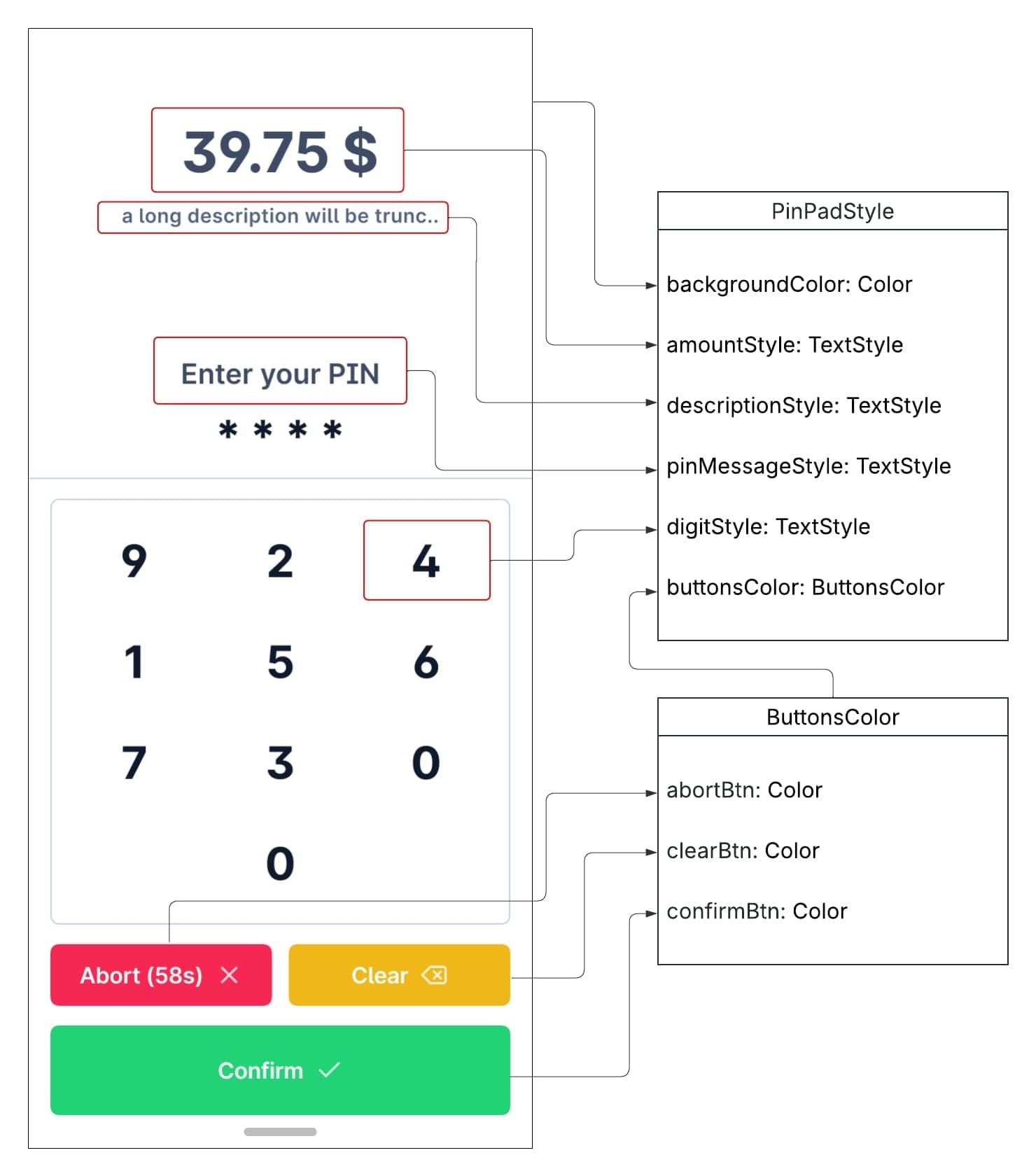
You can customize all the fields shown in the following figure by having your own PinPadStyle instance, if you didn't
use custom styling then default PinPad style screen will be rendered. Every colour is an ARGB Int, and every field
defaults to null, which keeps the built-in look.
data class PinPadStyle(
  val backgroundColor: Int? = null,
  val amountStyle: TextStyleConfig = TextStyleConfig(),
  val descriptionStyle: TextStyleConfig = TextStyleConfig(),
  val pinMessageStyle: TextStyleConfig = TextStyleConfig(),
  // the masked PIN dots
  val pinMaskStyle: TextStyleConfig = TextStyleConfig(),
  val digitStyle: TextStyleConfig = TextStyleConfig(),
  // font, size and colour of the Abort / Delete / Confirm button labels
  val buttonTextStyle: TextStyleConfig = TextStyleConfig(),
  val buttonsColor: ButtonsColor = ButtonsColor(),
  // spacing and sizes
  val dimensions: PinPadDimensions = PinPadDimensions(),
  // the "Preparing" screen shown before the PIN pad
  val preparingStyle: PreparingStyle = PreparingStyle()
)

data class TextStyleConfig(
  val color: Int? =  null,
  val fontSize: Float? =  null,
  // URI of a font file, as a String
  val fontFileUri: String? = null
)

data class ButtonsColor(
  val abortBtn: Int? = null,
  val clearBtn: Int? = null,
  val confirmBtn: Int? = null,
)

// Spacing and sizes, in dp. A field you leave null keeps the SDK's own value, which depends on the
// screen orientation. Set a field to take full control of it on a specific device, whatever the orientation.
data class PinPadDimensions(
  val amountTopSpacingDp: Float? = null,
  val descriptionPaddingDp: Float? = null,
  val pinLabelTopSpacingDp: Float? = null,
  val maskedPinTopSpacingDp: Float? = null,
  // exact button height, not a minimum. If you set it, also set buttonTextSizeDp so the text fits
  val buttonHeightDp: Float? = null,
  val buttonTextSizeDp: Float? = null
)

data class PreparingStyle(
  val backgroundColor: Int? = null,
  val textStyle: TextStyleConfig = TextStyleConfig(),
  val progressColor: Int? = null
)
PIN pad text from the card's language
During a transaction, the SDK calls MineSecPaymentActivity.onResolvePinText after the card is read and before the PIN
pad opens. Override it in your own subclass of MineSecPaymentActivity to return the PinEntryDetails in the
cardholder's language. This needs a subclass, so it applies when you launch with MineSecPaymentActivity.contract(...).
class MyPaymentActivity : MineSecPaymentActivity() {
  override fun onResolvePinText(
    languagePreferences: List<String>, // EMV tag 5F2D, most preferred first, e.g. ["cs", "en"]
    issuerCountryCode: Int?,           // EMV tag 5F28, ISO 3166-1 numeric, e.g. 203. null if unreadable
    current: PinEntryDetails           // from MhdEmvTransactionDto.pinpadConfig, or the defaults
  ): PinEntryDetails =
    if ("cs" in languagePreferences) current.copy(pinDescription = "Zadejte PIN", confirmText = "Potvrdit")
    else current
}
A card can prefer a language you do not support, so check the whole languagePreferences list, not only the first entry,
before you fall back. languagePreferences is empty if the card's language could not be read. Return current
unchanged to keep what was already configured.
Input parameters
- JSON encoded request with PAN and it should be a dummy PAN for capturing PIN BLOCK. when it's a empty string. MPoC SDK will look into memory cache to see if there is an encrypted PAN which is captured in the recent transaction. ( Note: this memory cached encrypted PAN is only valid for a limited time (1-2mins) )
val requestSCA = json.encodeToString(PinEntryDto("1122334455667788"))- PinPadConfig instance to pass the required configrations for PIN screen
data class PinPadConfig(
  val pinPadStyle: PinPadStyle = PinPadStyle(),
  val pinEntryMode: PinEntryMode = PinEntryMode.SHUFFLE,
  var pinEntryDetails: PinEntryDetails = PinEntryDetails()
)

// for example
val config = PinPadConfig(pinEntryDetails = PinEntryDetails(amount = "100.00 USD"))
Launch PinPad Activity
- Add your json encoded request to a bundle.
- Add intent extras for the bundle and config instances.
Note: Below call mode is available starting from v2.01.001.011.029.
// we use intent name to replace "SecurePinPadActivity" class as this is removed from SDK list
 val intent2=Intent("com.theminesec.minehades.PIN_ACTIVITY").apply {
            // addFlags(Intent.FLAG_ACTIVITY_NEW_TASK) Note: YOU CAN NOT ADD THIS !!
            putExtra(PinPadConstants.EXTRA_PIN_PAD_CONFIG, getPinPadConfig(context, selectedMode.value))
            putExtra(PinPadConstants.BUNDLE_PIN_REQUEST, bundle)
        }
Note: Below is only available on the version before v2.01.001.010.029
val bundle = Bundle()
bundle.apply {
    putString(PinPadConstants.EXTRA_PIN_SCA_CAPTURE, requestSCA)
}

val intent = Intent(context, SecurePinPadActivity::class.java).apply {
  putExtra(PinPadConstants.EXTRA_PIN_PAD_CONFIG, getPinPadConfig()
  putExtra(PinPadConstants.BUNDLE_PIN_REQUEST, bundle)
}- Launch the activity and observe its result
val launcher = rememberLauncherForActivityResult(
    contract = ActivityResultContracts.StartActivityForResult()
) { result ->
    if (result.resultCode == Activity.RESULT_OK) {
        val response = result.data?.getStringExtra(PinPadConstants.EXTRA_PIN_CAPTURE_RESPONSE)
        response?.let {
            val pinResponse = json.decodeFromString<PinEntryResponse>(it)
        }
    } else if (result.resultCode == Activity.RESULT_CANCELED){
        val errorCode = result.data?.getIntExtra(PinPadConstants.EXTRA_PIN_CAPTURE_RESPONSE_CODE, 0)
        val errorMsg = result.data?.getStringExtra(PinPadConstants.EXTRA_PIN_CAPTURE_RESPONSE_MSG)
    }
}


launcher.launch(intent)
Output parameters
data class PinEntryResponse(
  val pinBlock: String,
  val keyId: String,
  val panLast4:String
)